

1. Activation and login
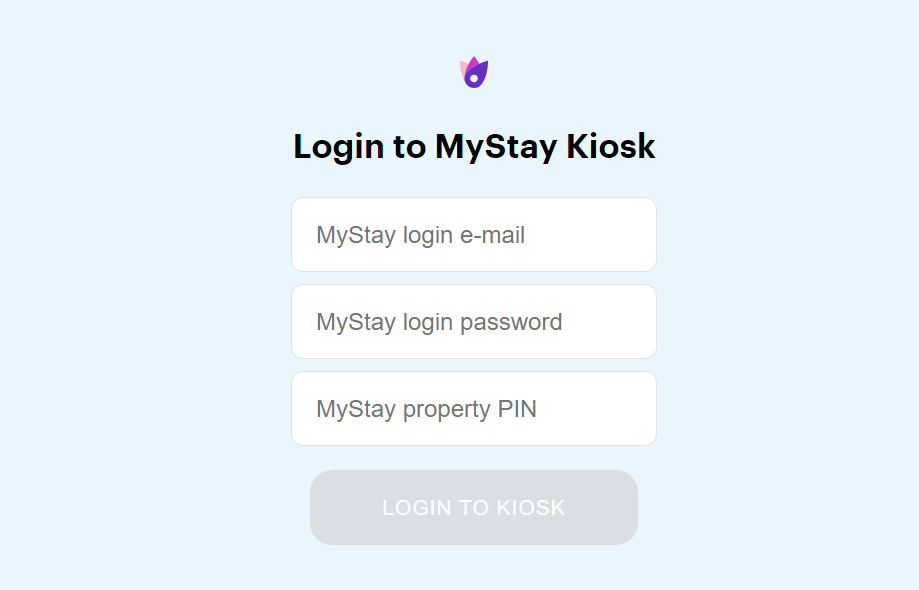
First you need to manually connect kiosk with the profile in MyStay
When the application is first started, a field is displayed to insert login data and a PIN of the accommodation
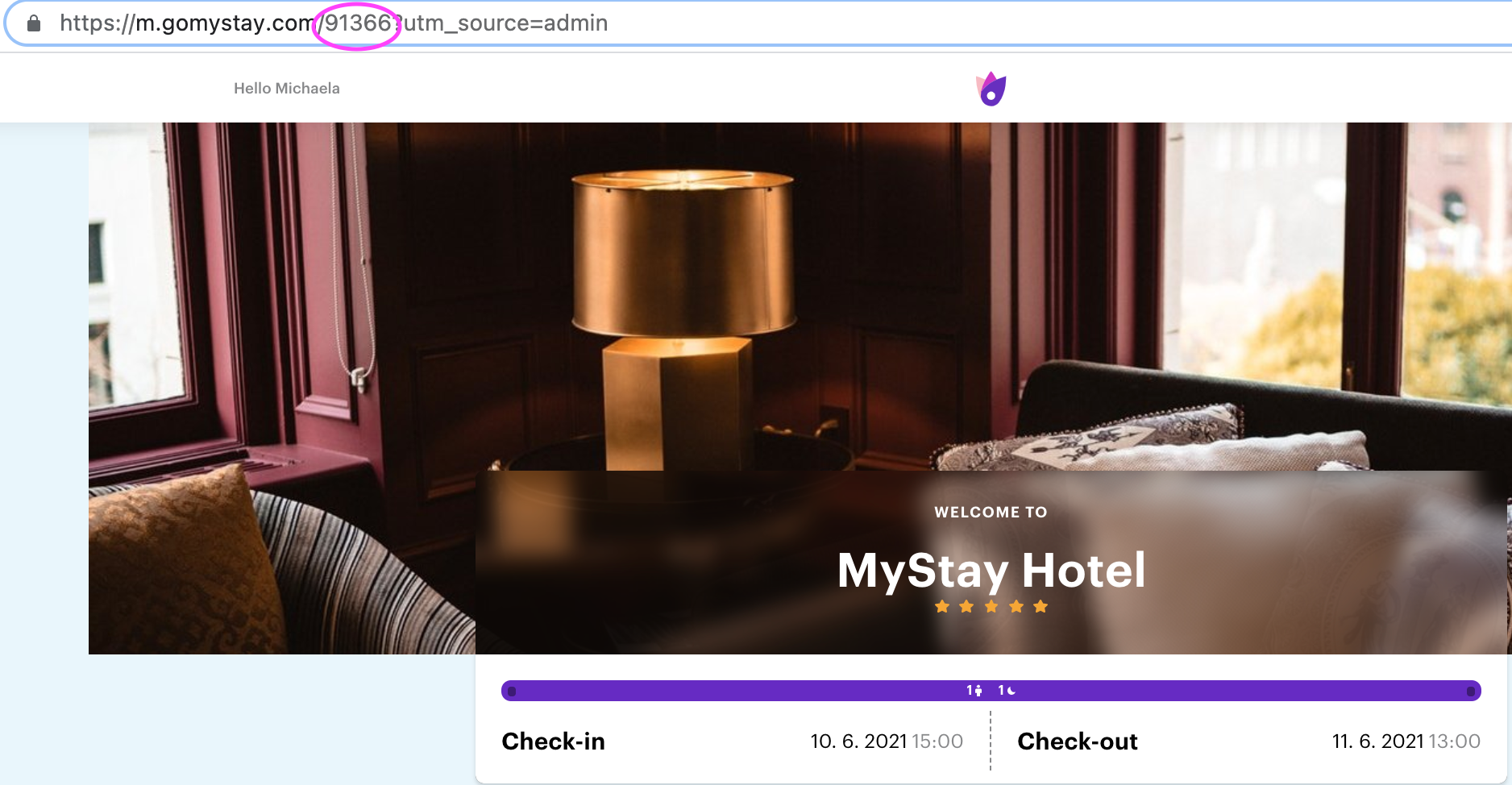
TIP! The accommodation's PIN can be found in the link to the residence website, always a 5-digit number (e.g. 91366)
2. Home page
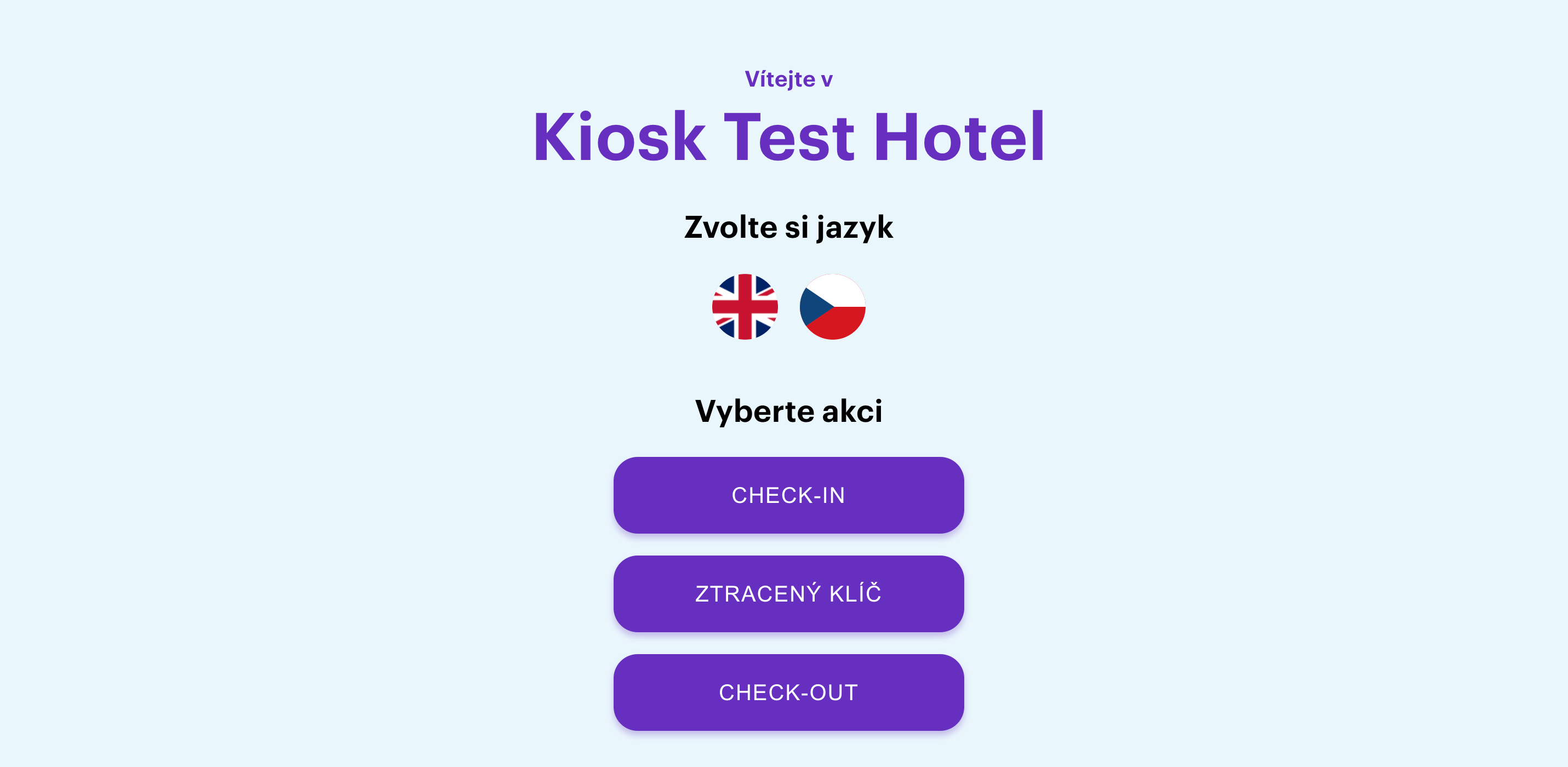
this is a crossroads where guests can choose from 3 options
Check-in
Lost Key
Check-out
3. Login the guest
when selecting "Check-in," "Lost Key" or "Check-out" the guest will always be checked in
Search your booking - text under the title is editable in MyAdmin - > Settings - > Kiosk section
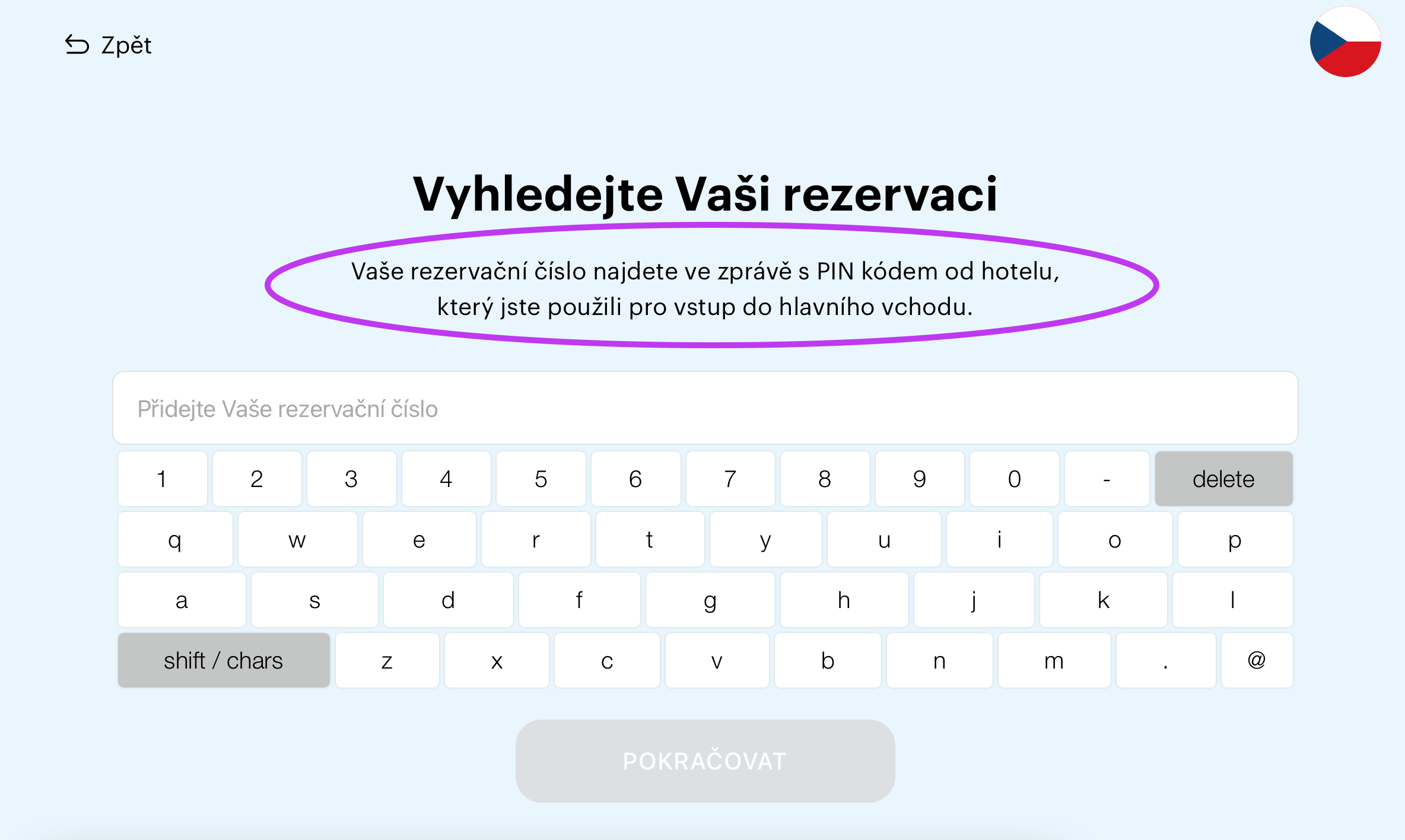
Guest verification - text under the title is editable in MyAdmin - > Settings - > Kiosk section
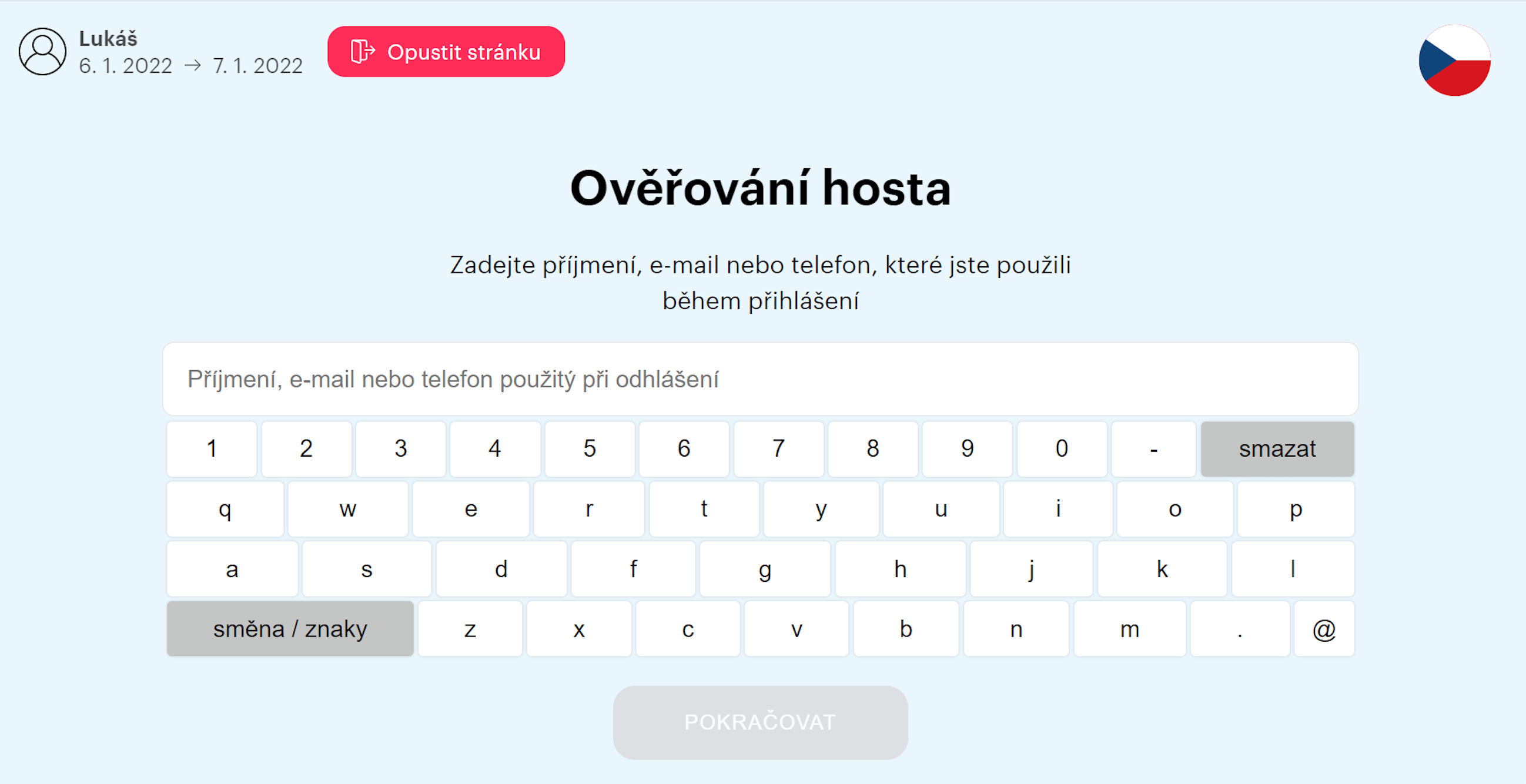
Check-in
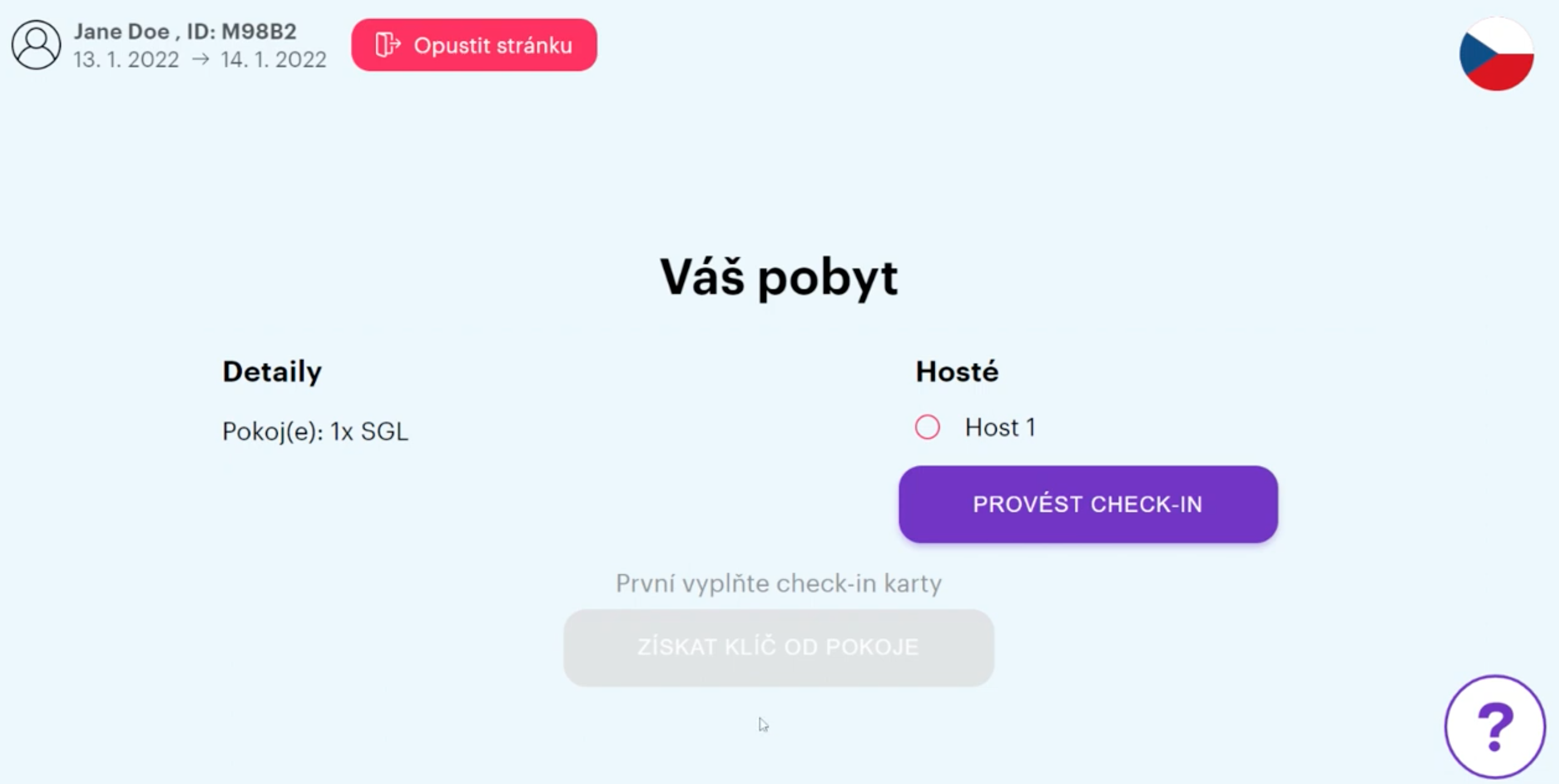
by clicking on "Make Check-in" the guest will be bequeathed to the details of the online registration card
the kiosk registration card is the same as the registration card on the residence website if you want to activate / deactivate certain fields, go to MyAdmin - > Settings - > Check- in section
Register - text under the title is editable in MyAdmin - > Settings - > Kiosk section
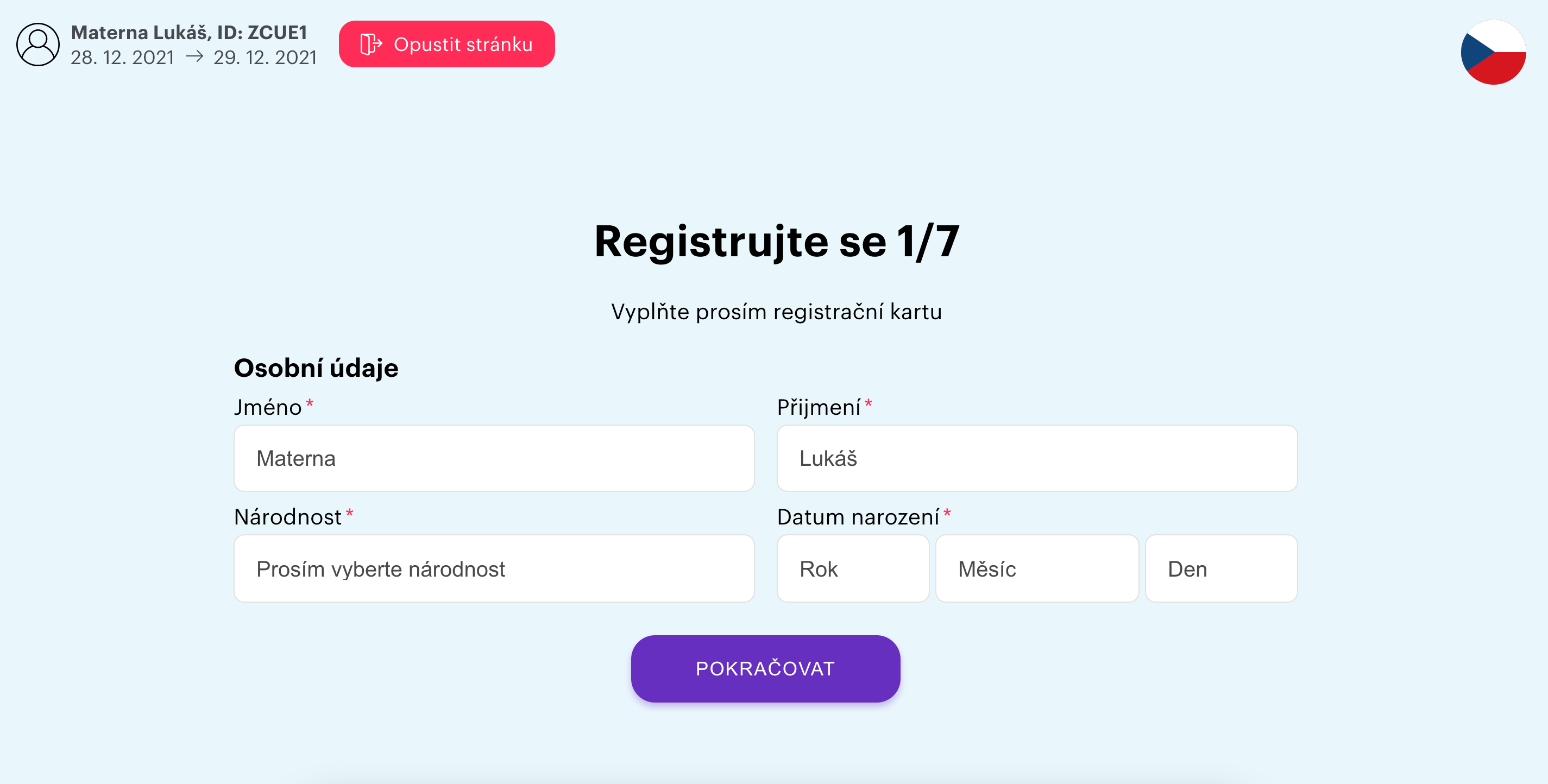
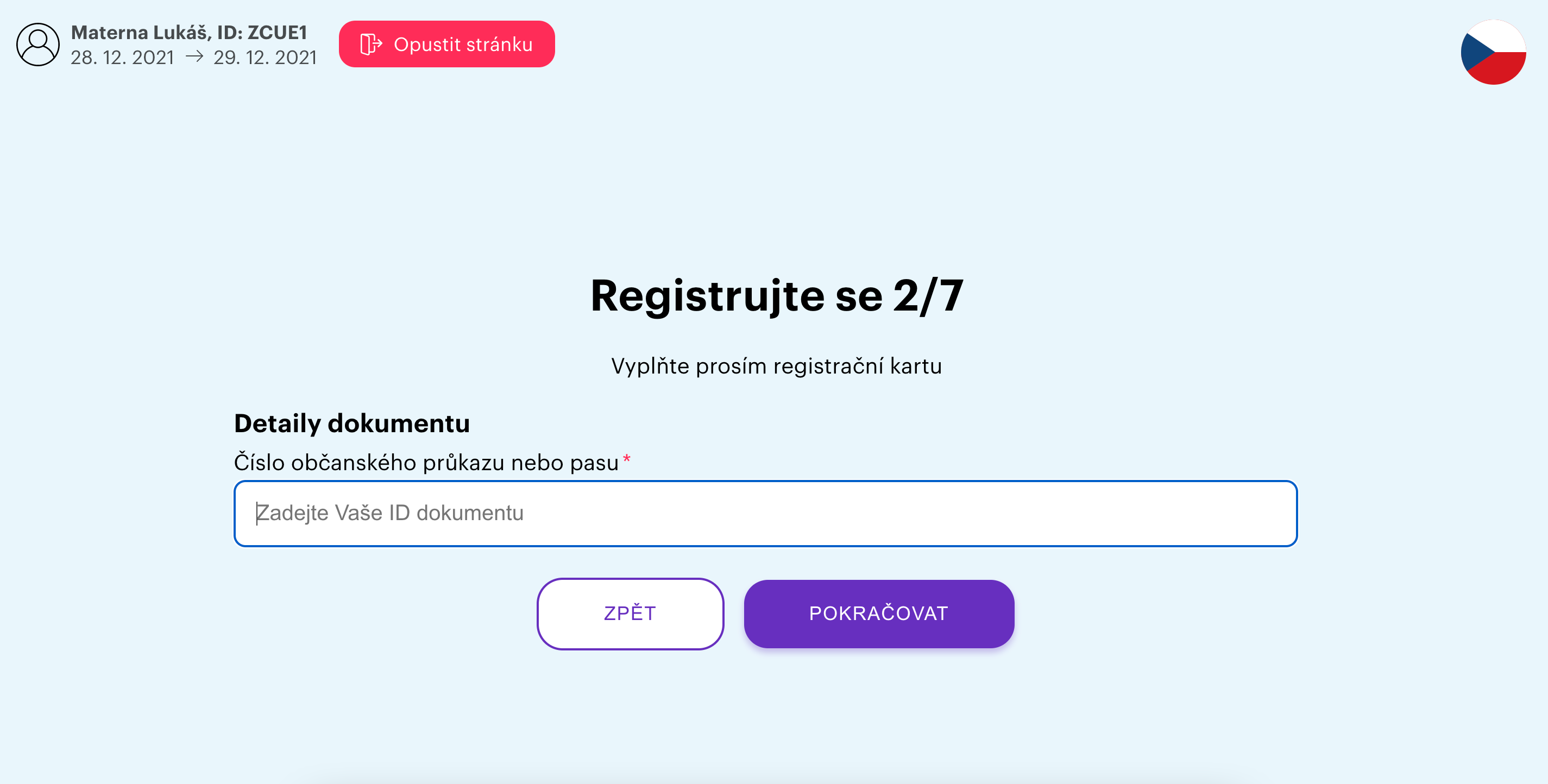
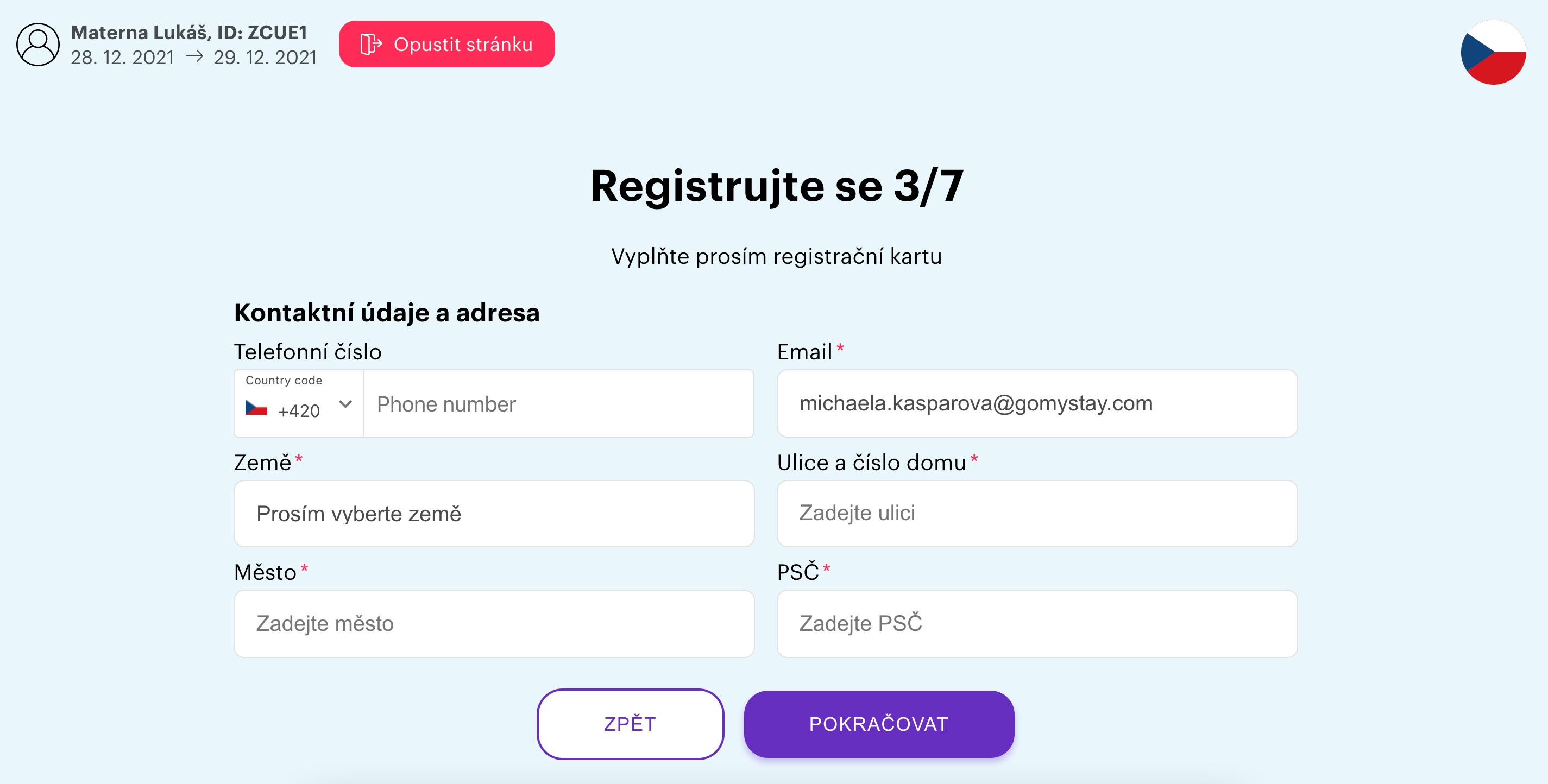
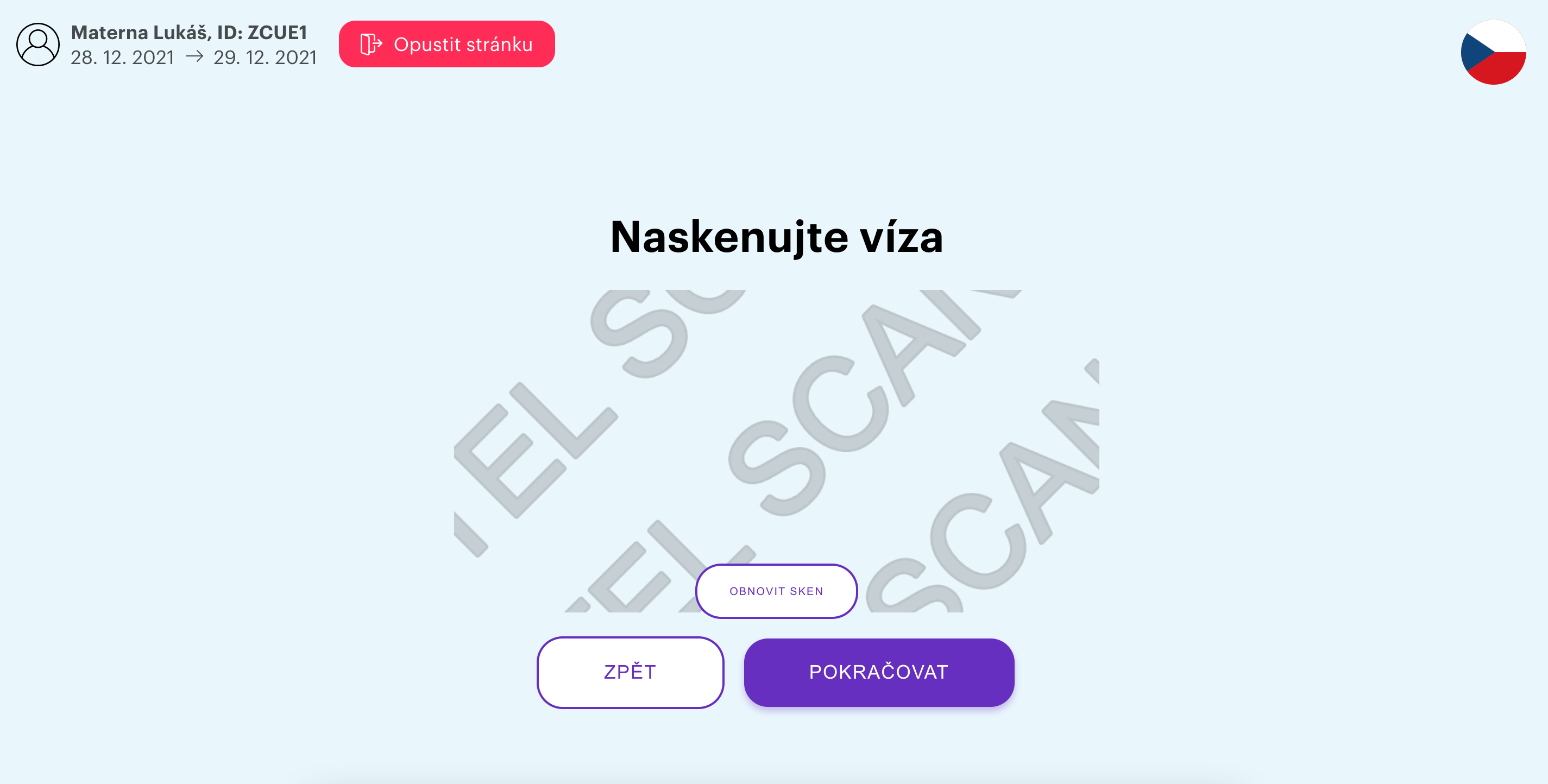
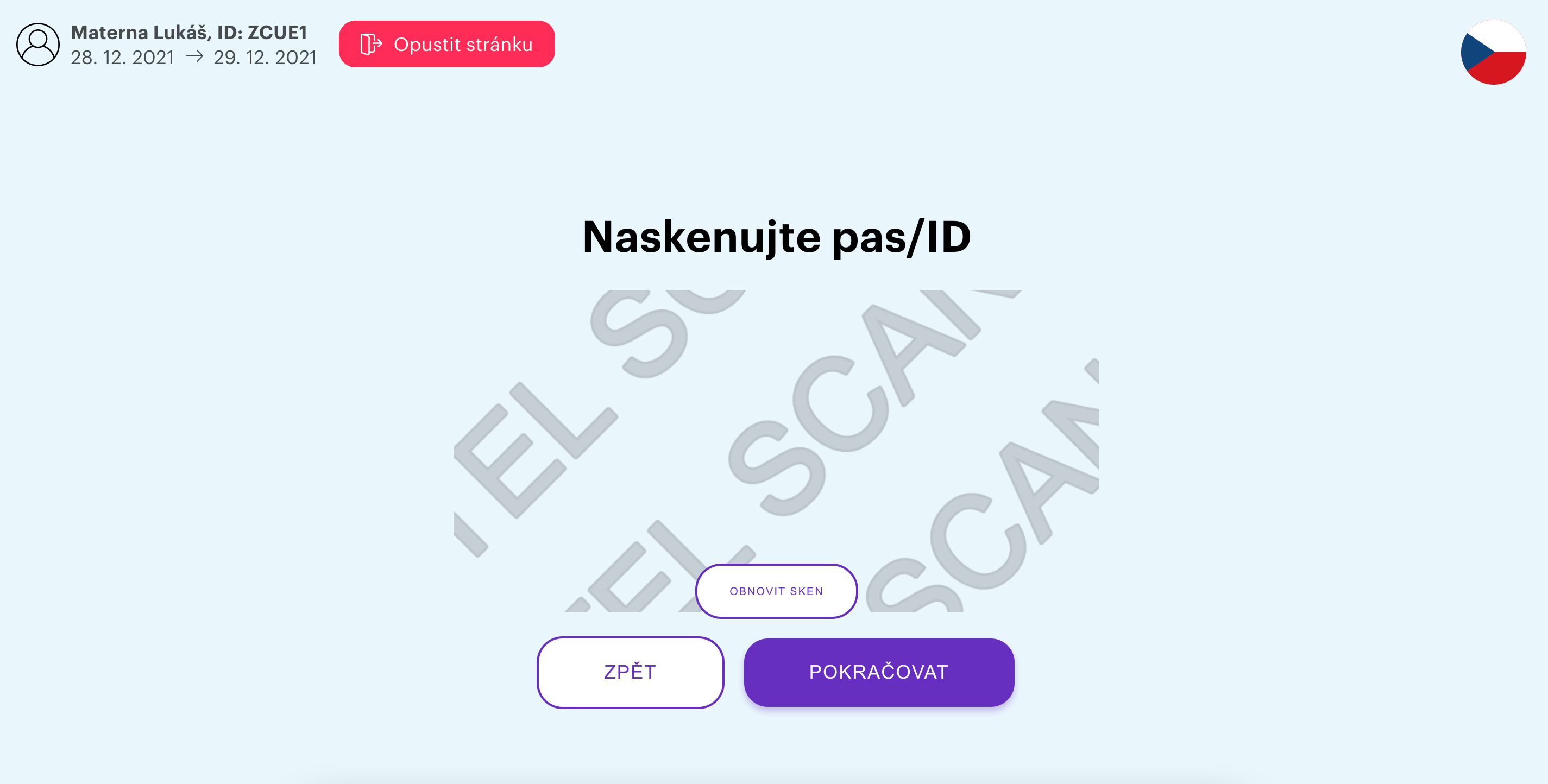
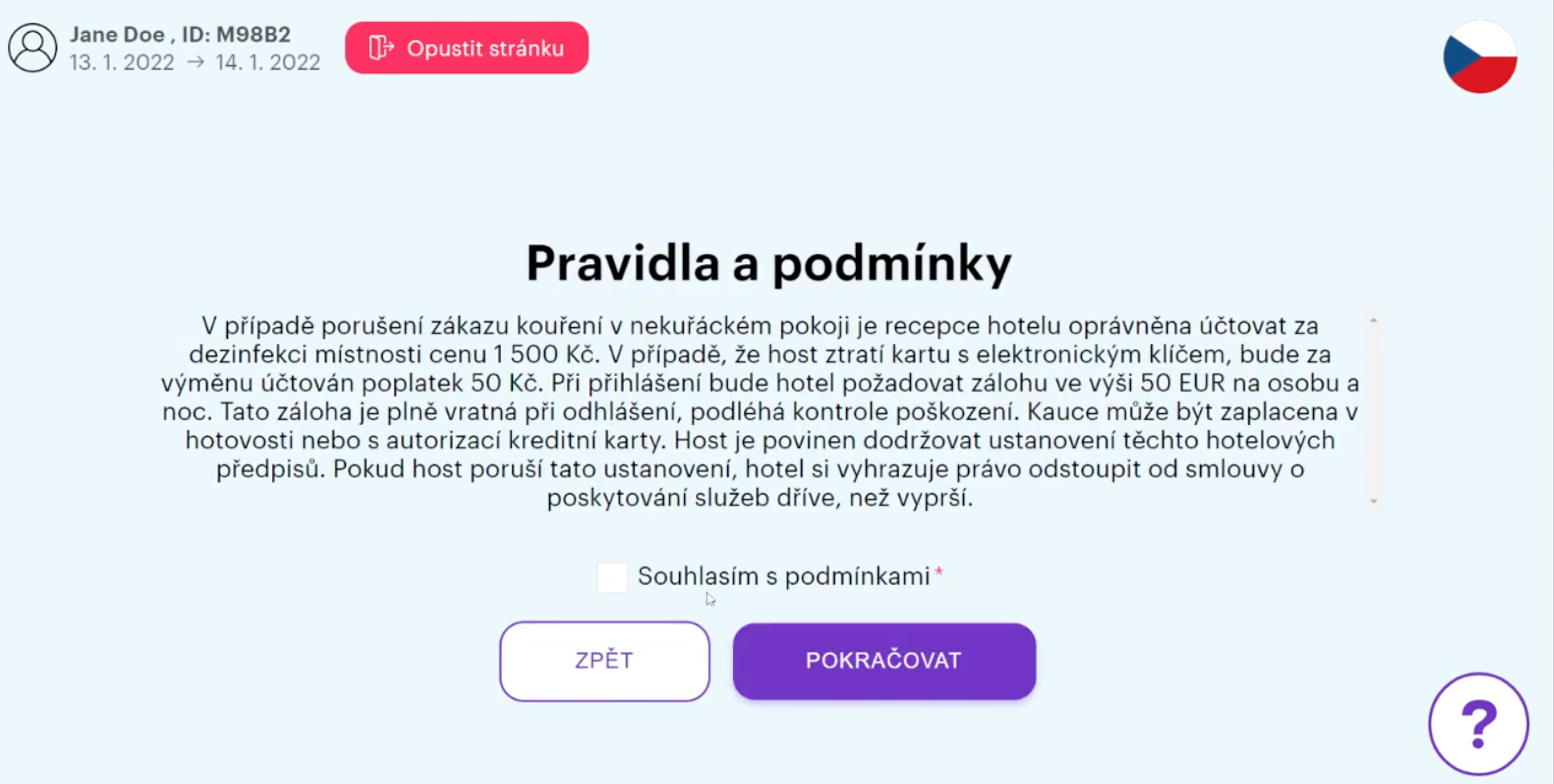
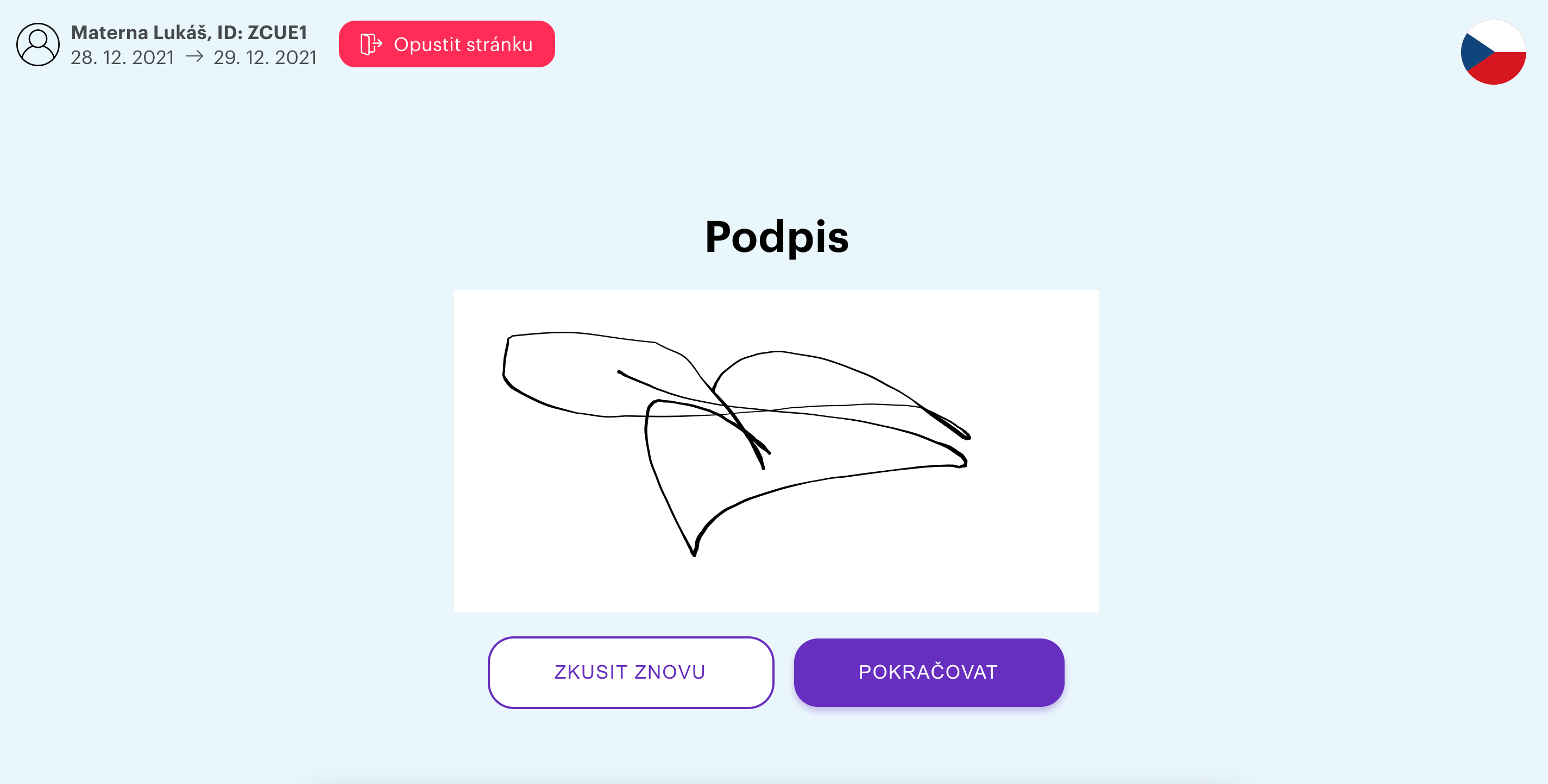
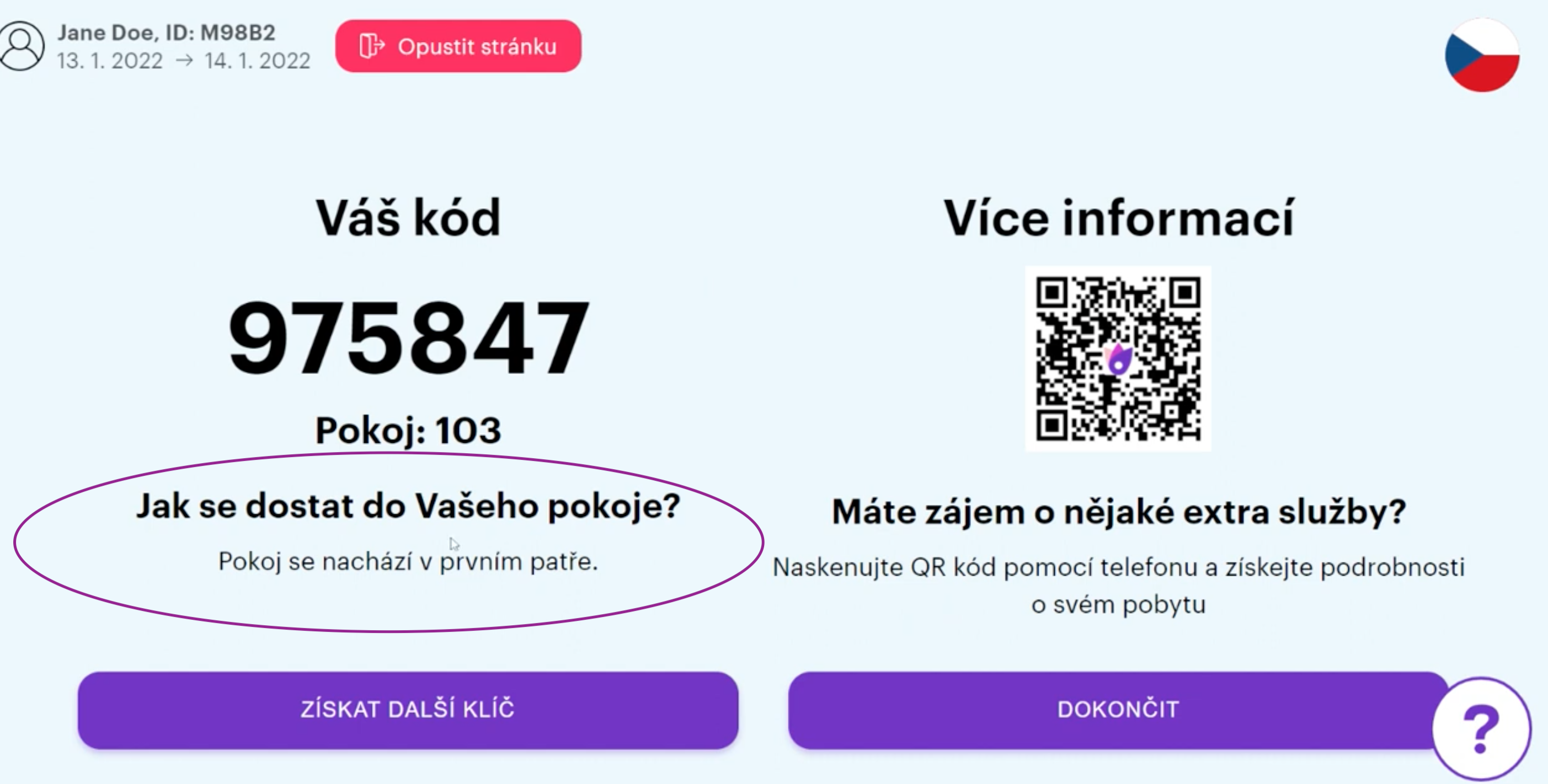
the guest is not able to obtain the code from the room, if the online registration cards are not filled out for all persons on the booking
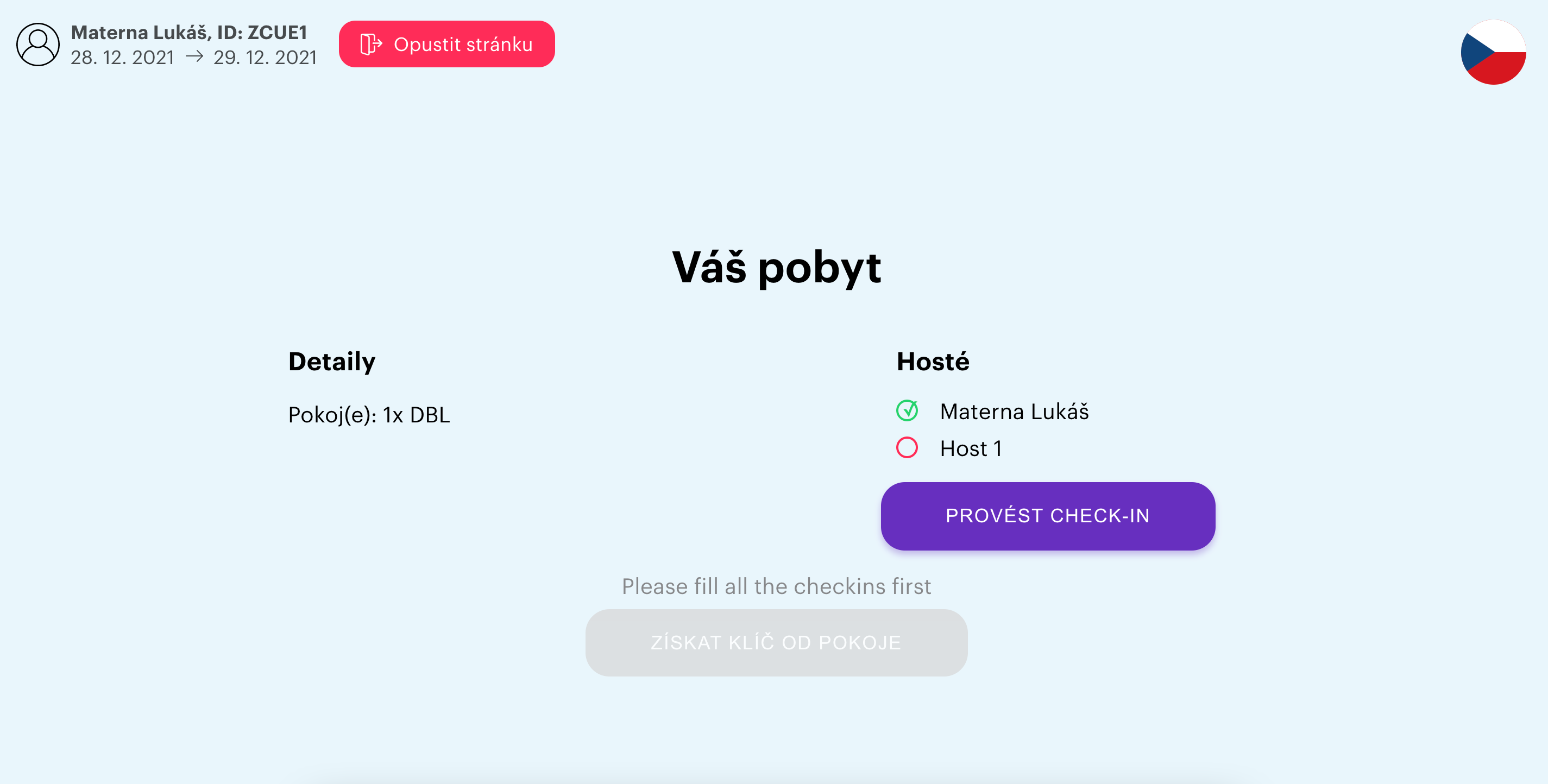
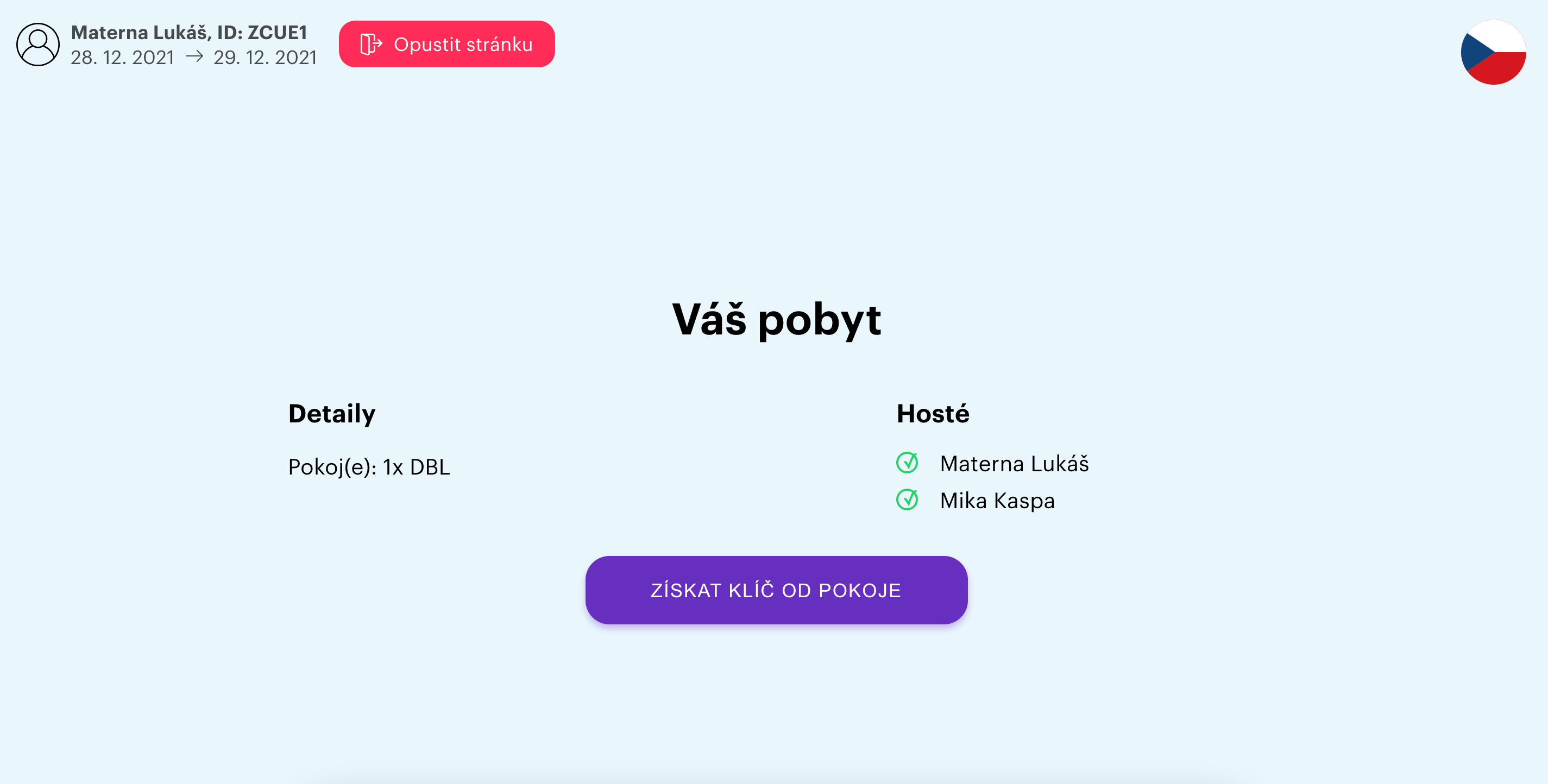
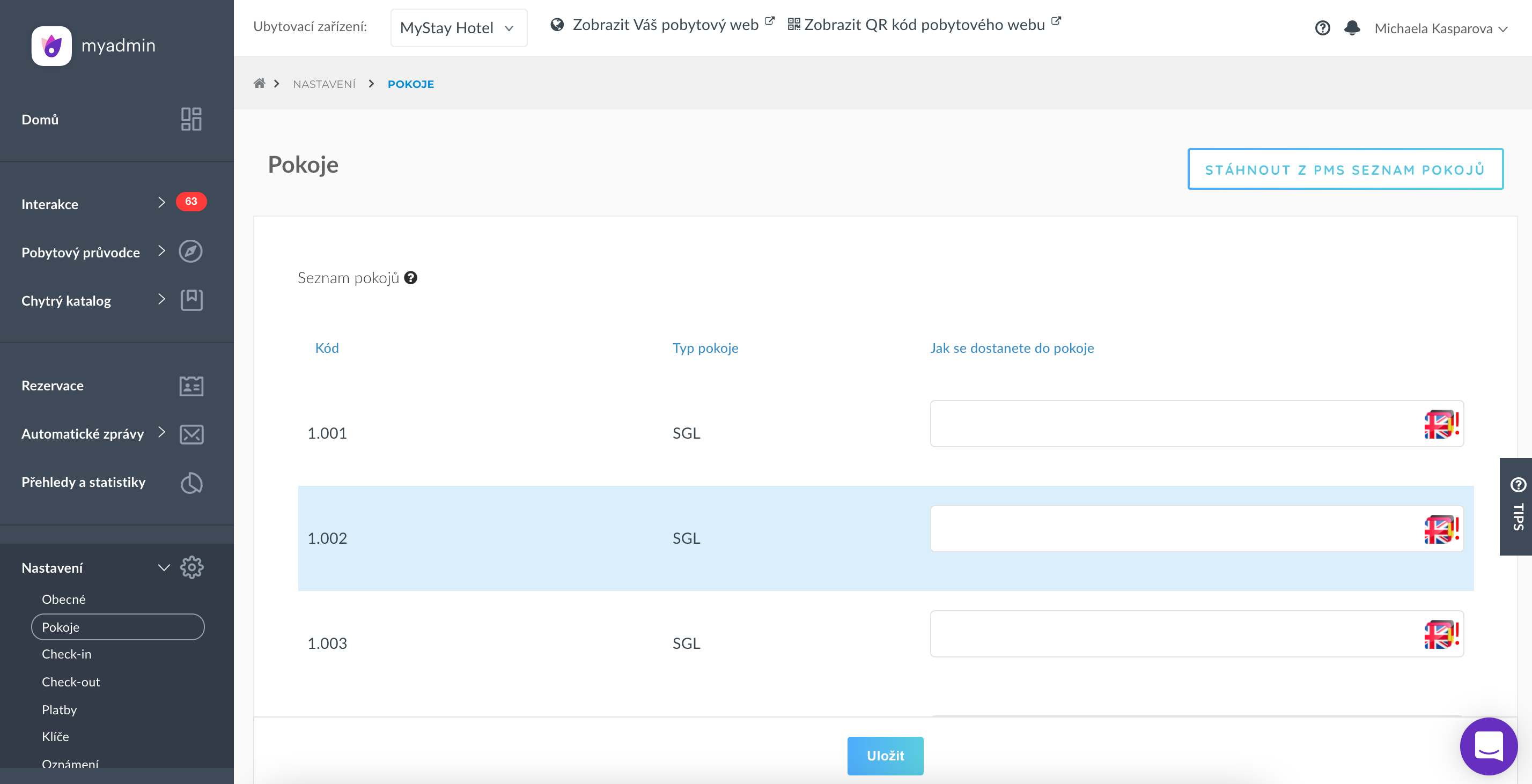
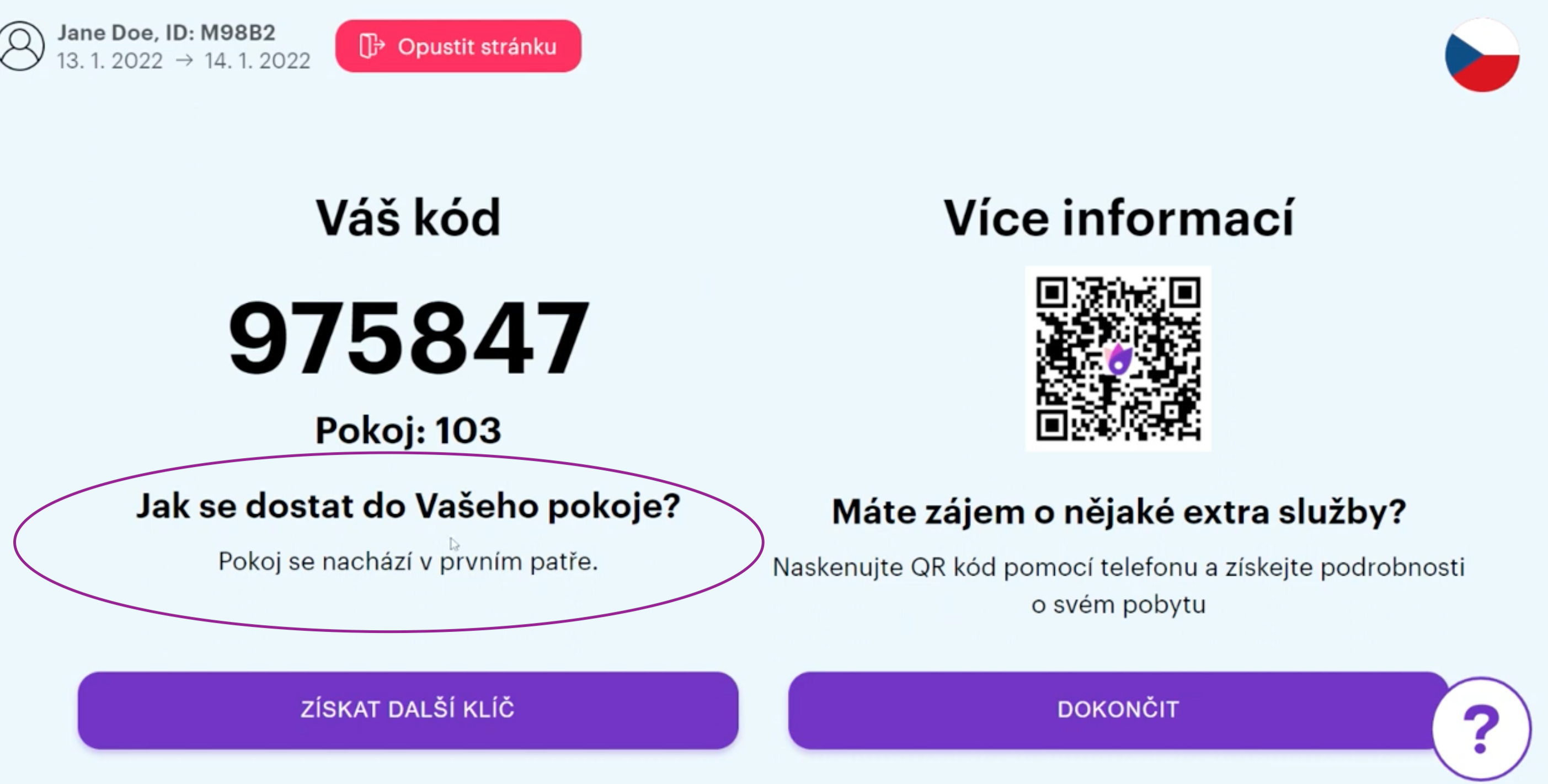
How to get to your room - the text describing the location of the room is editable in MyAdmin - > Settings - > section Rooms
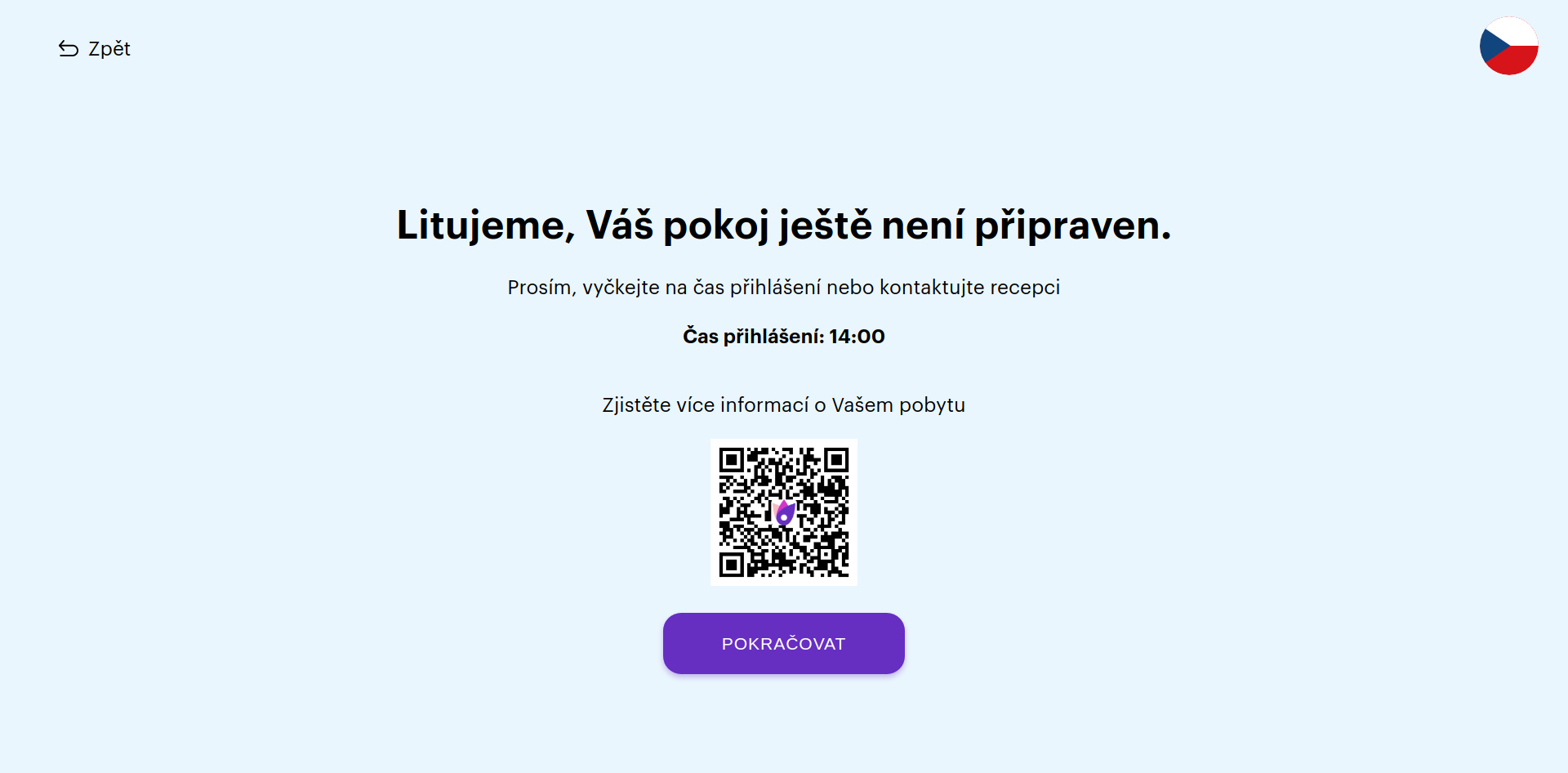
The room is not ready
will be displayed if the booking cannot be assigned to a room of the type (there is no free and clean room at the given moment)
TIP! "Check-in time" is the value given in MyAdmin
Lost Key
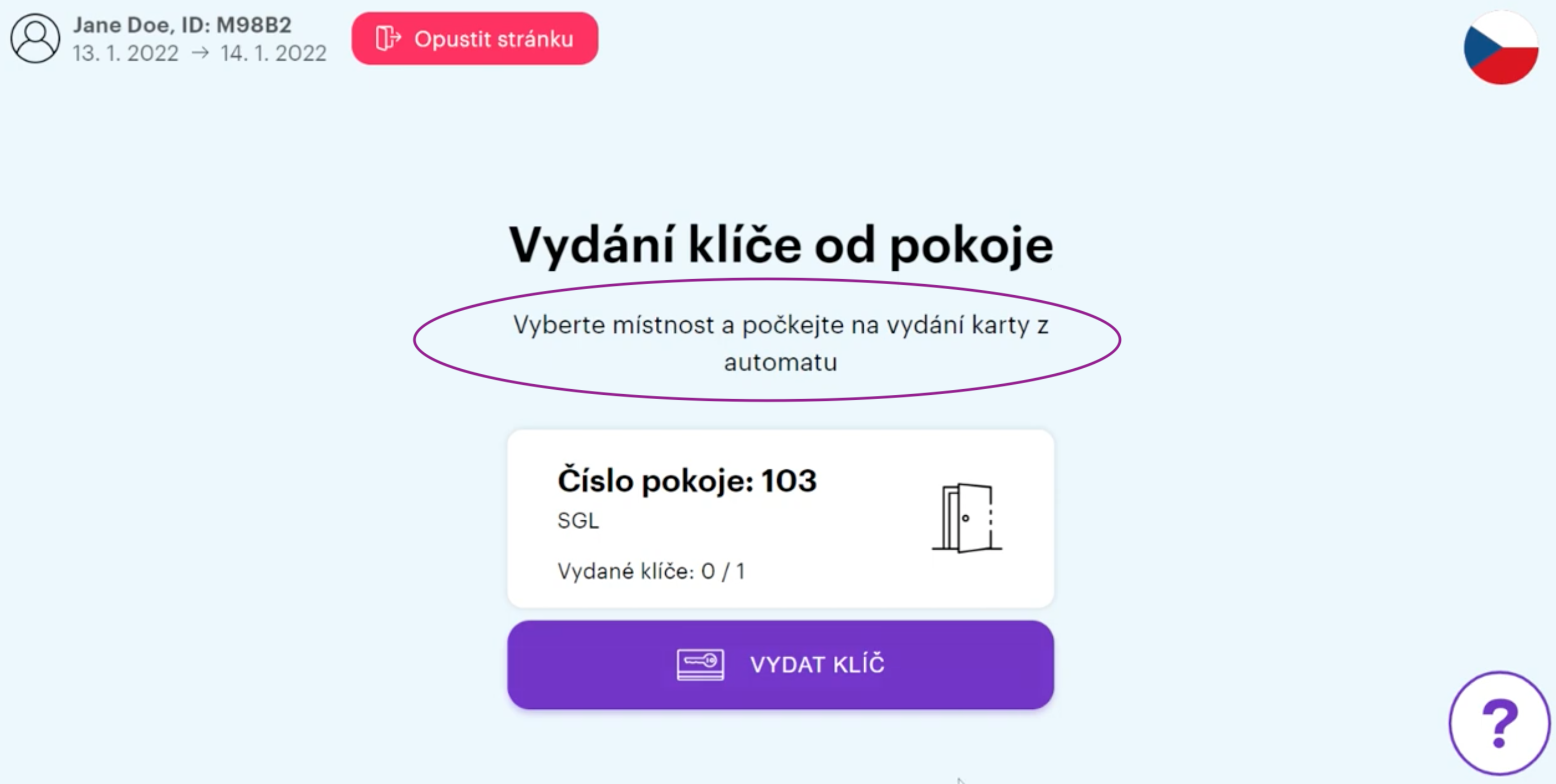
Issue of room key and How to get to your room - text under the title is editable in MyAdmin - > Settings - > Kiosk section
Check-out
Check out of the room - text under the title is editable in MyAdmin - > Settings - > Kiosk section
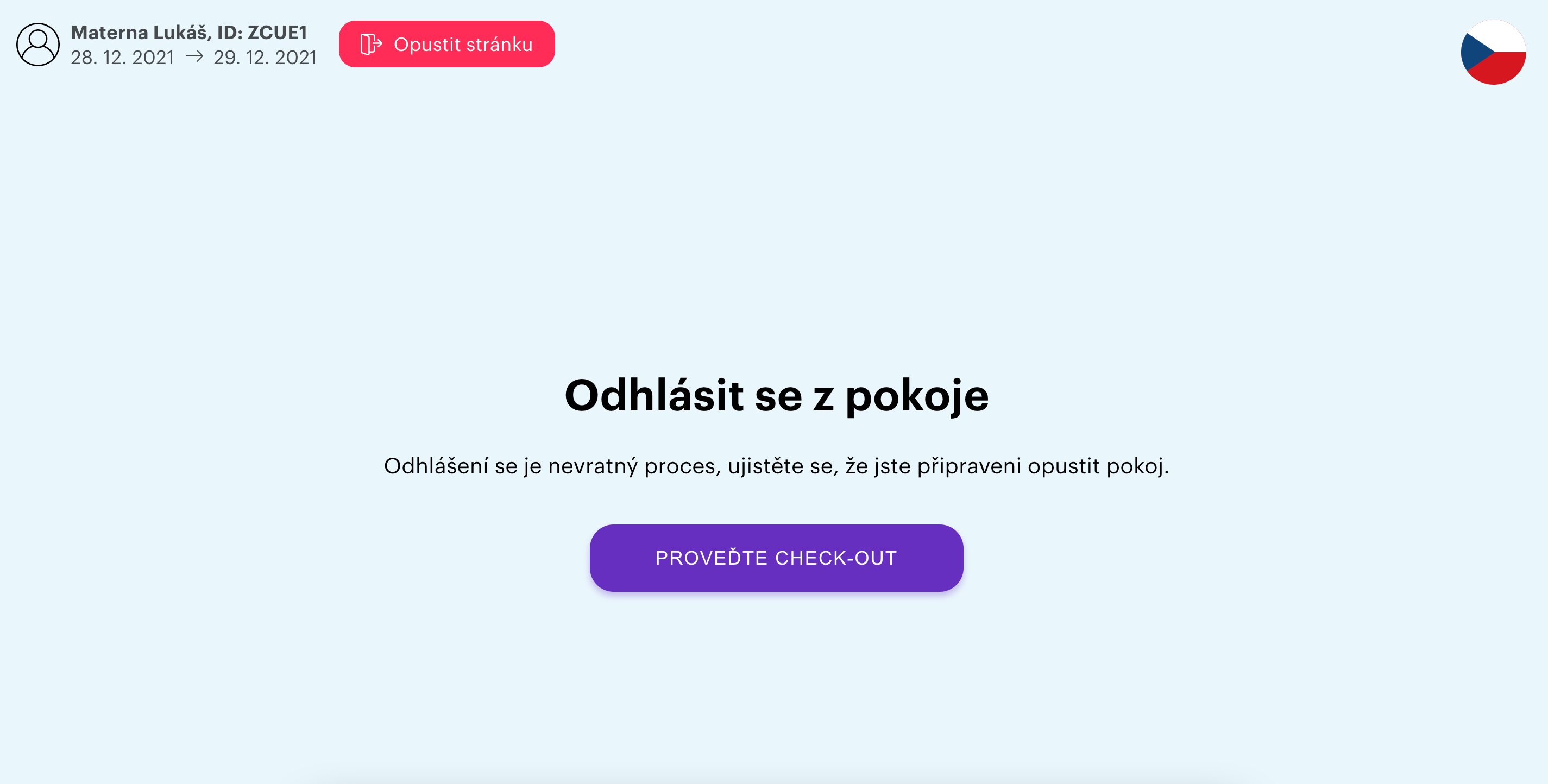
If the guest clicks "Check-out," then the following dialog will be displayed to confirm this
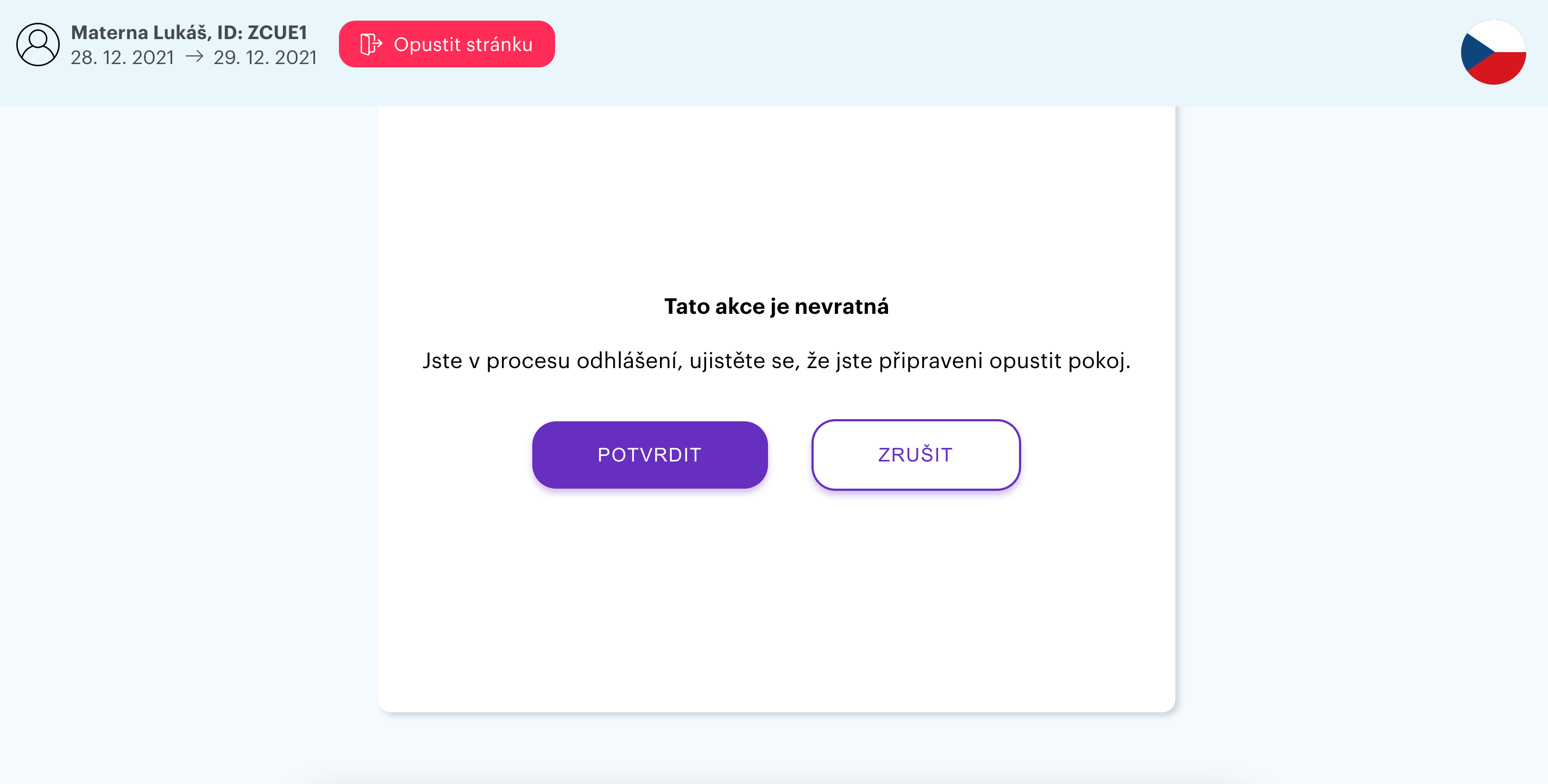
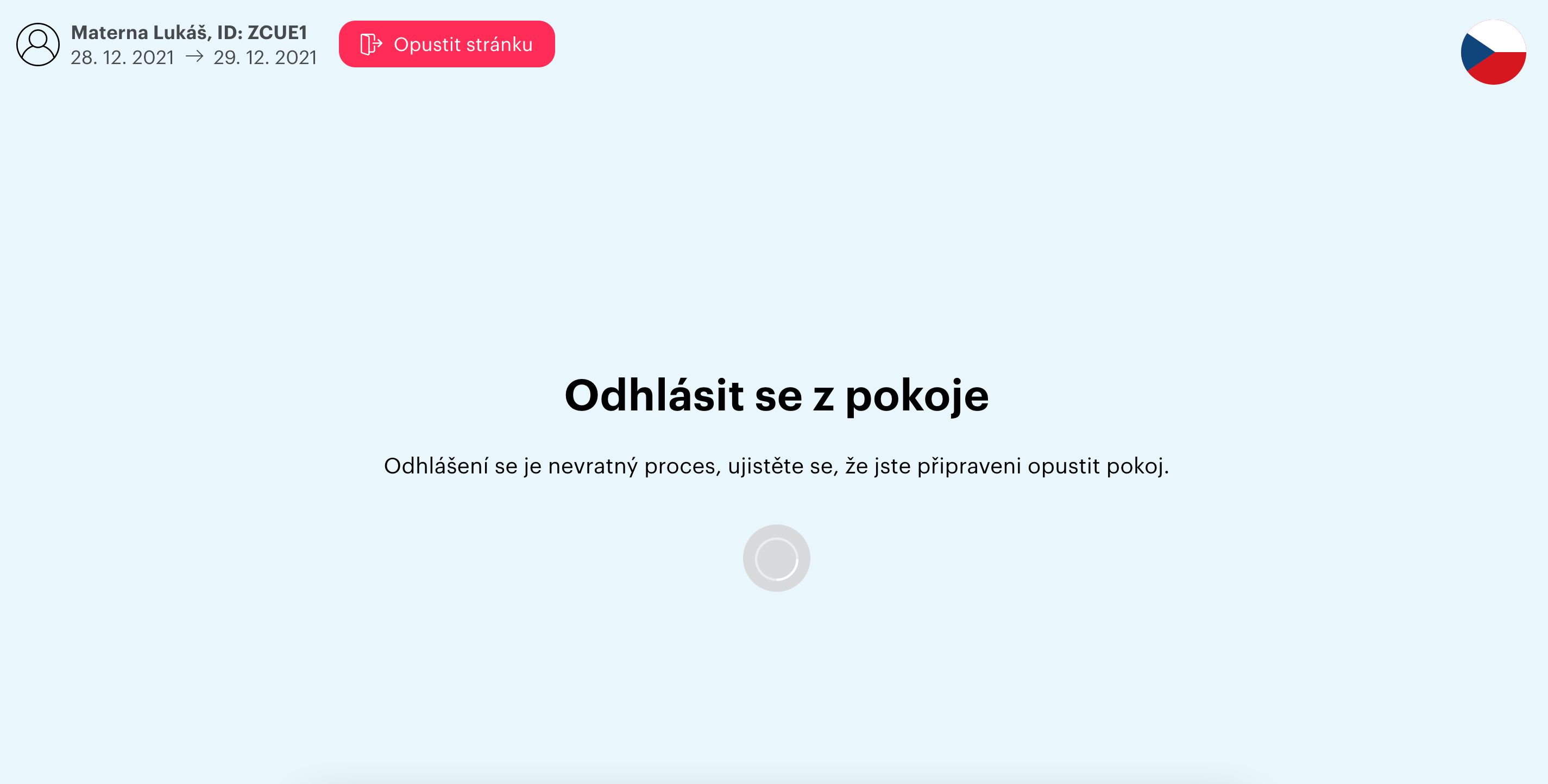
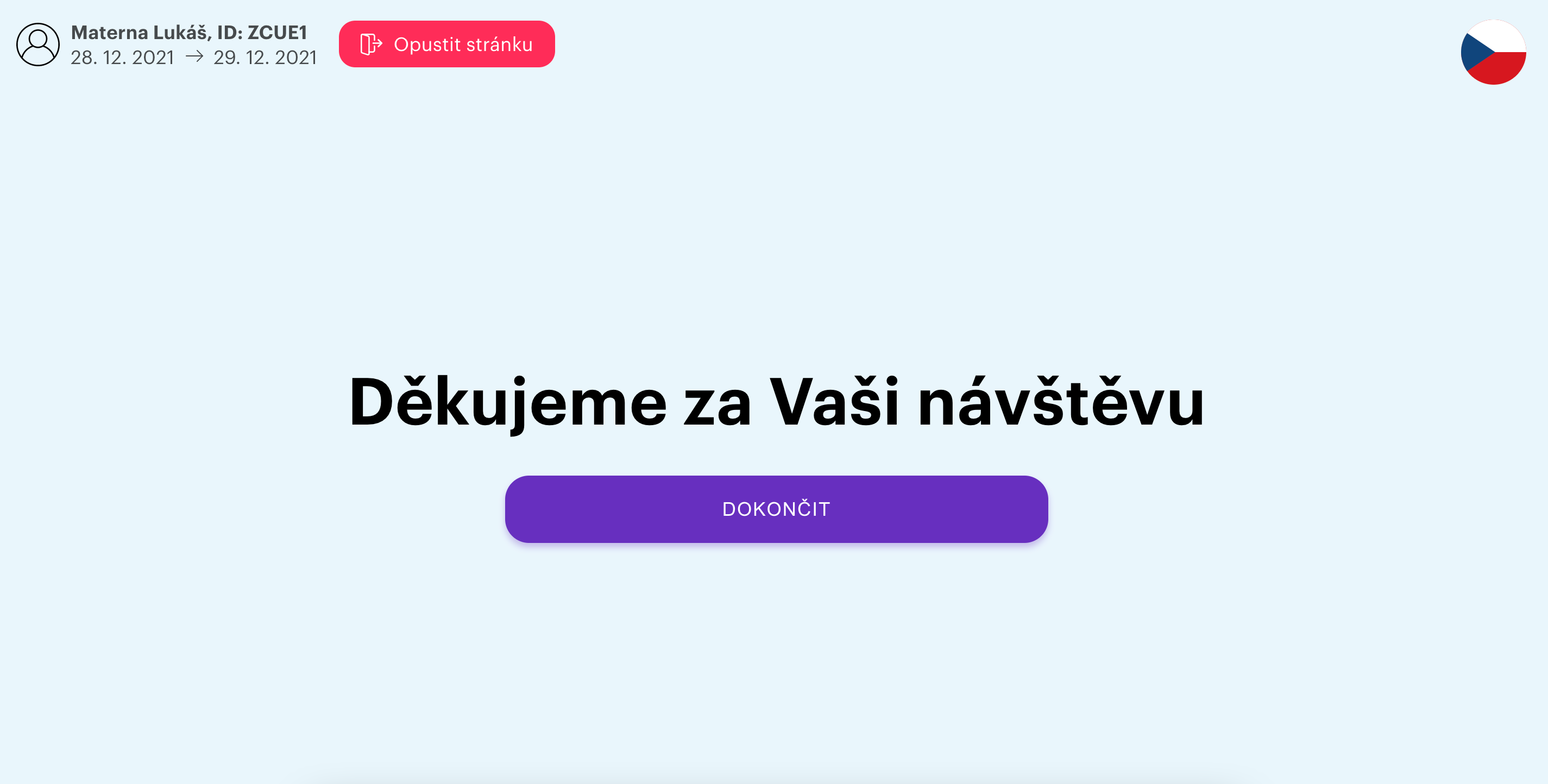
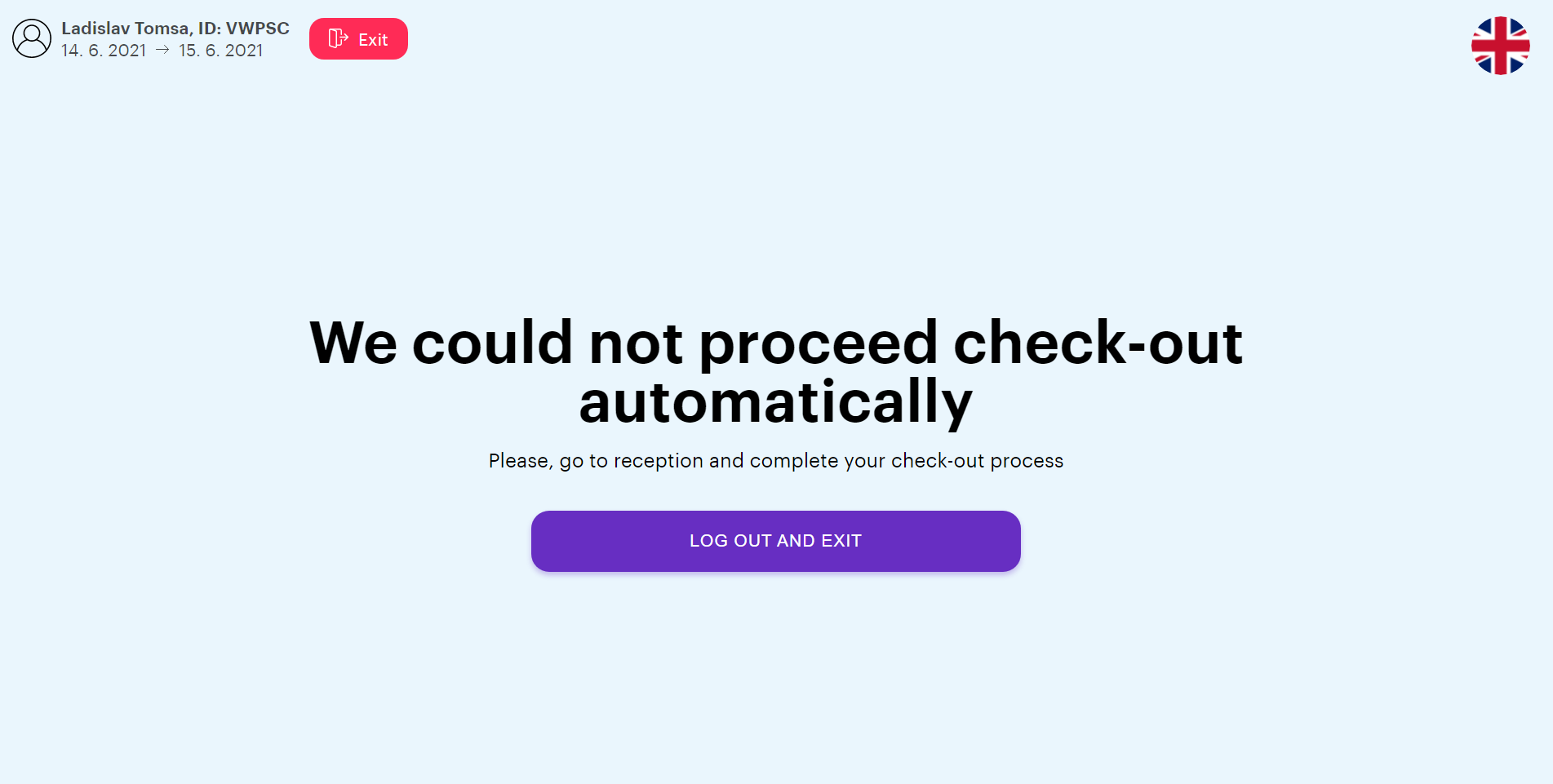
if the guest confirms the check-out by pressing "Confirm" but the check-out cannot be done, the last step with the text below will be displayed
Sending notifications
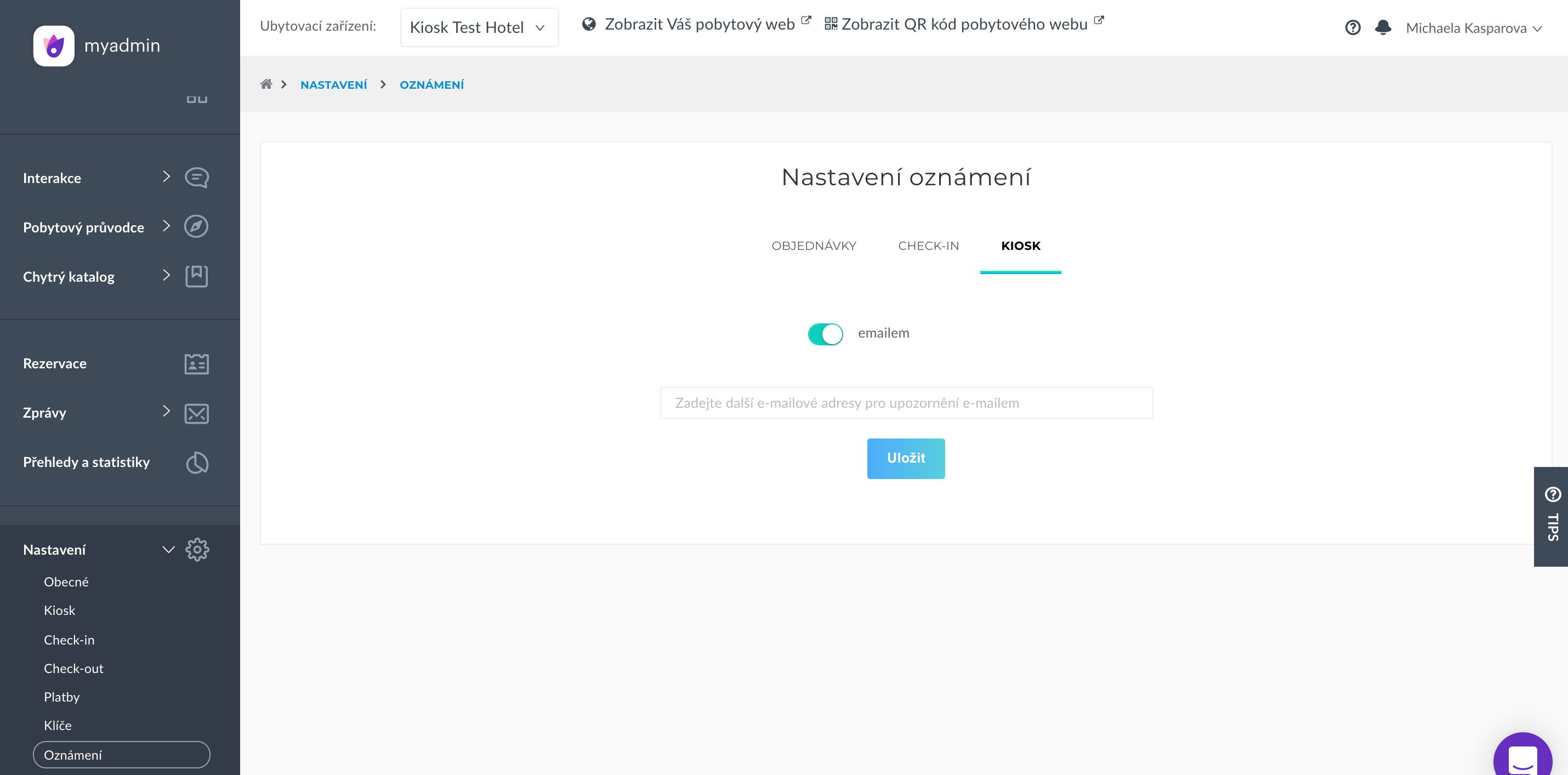
Part of the kiosk is sending email notifications
in MyAdmin, in the Settings section - You can add multiple email addresses to which these notifications should be sent
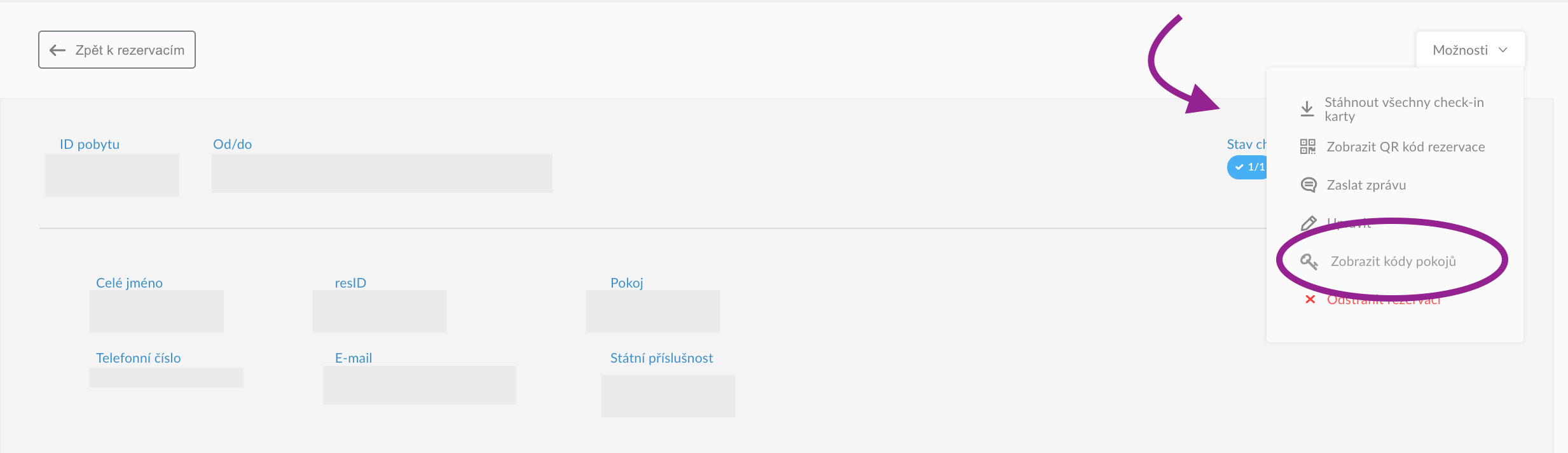
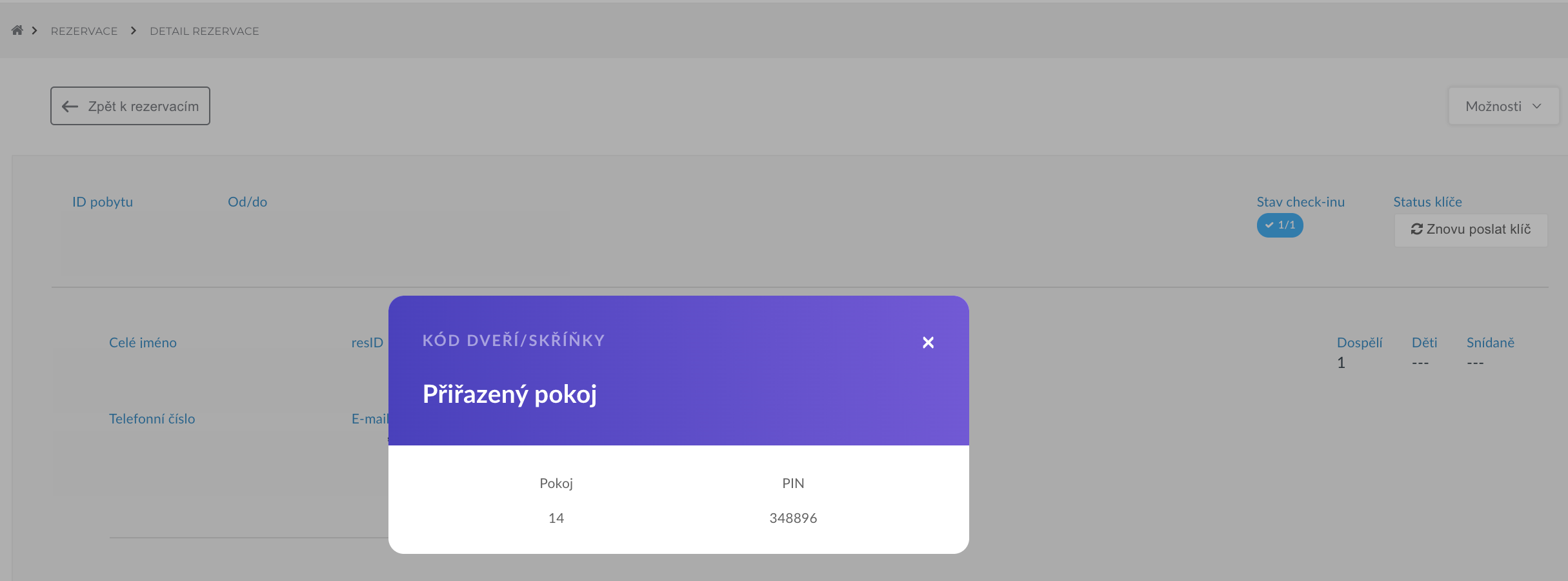
Display code
room code can also be found in MyAdmin - > Reservations - > Detail reservations - > Options - > Show room codes
Internet connection failure
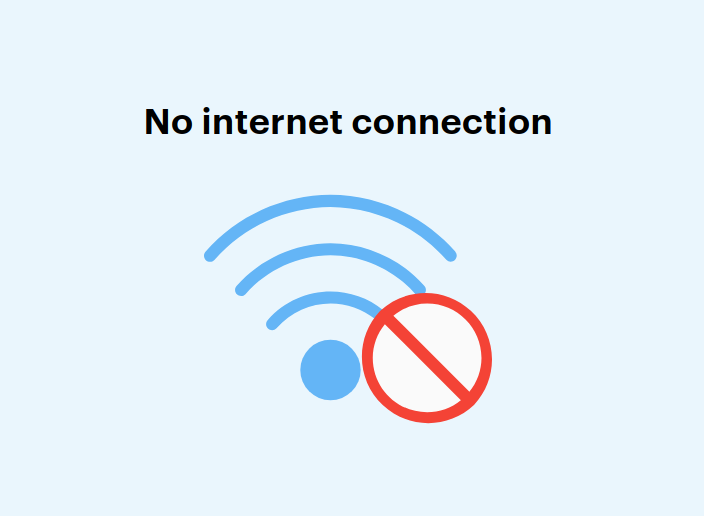
The connection failure detected by MyStay actively - > from the moment of recording the countdown runs 20 seconds. If no Internet connection is available by then, then "No Internet connection" is displayed below.
In case we find an internet connection, then this page disappears and the guest is automatically redirected to "Home page"
Kiosk Update
Kiosk mode is set in the kiosk where it is not possible to get out of the application and it is not possible to use kiosk e.g. as an internet browser.
If you need to get out of kiosk mode, you need to gradually drop the application in the background by clicking on the square to the right of the central main button on the tablet.
After the 5th drop of the application, the password request is displayed. After entering it you need to click on the green pipe on the right, thus closing the keyboard.
The last step is to push the bottom black panel where the password was entered up (swipe up from the bottom panel) and confirm the password entry. This will disable kiosk mode.
You need to switch off kiosk mode for example when updating MyStay Kiosk.
Password to disable kiosk mode: mystay007 _ (including characters _)